Understanding the Alert
When a Fraud Patrol alert fires in the #fraud Slack channel, it includes the following details:
|
Field |
What It Means |
|
Number |
The phone number flagged by ClearIP |
|
Domain |
The Netsapiens domain — use this to pull CDRs |
|
Fraud Type |
e.g. "Robocall Burst" — tells you what pattern to look for in CDRs |
|
Block Start / Expires |
The automated block window — typically 60 minutes |
|
View / Manage Blocks |
Link to ClearIP for managing the block directly |
Tip: Follow the three stages below in order. Do not close an account without completing both the Stripe review and the CDR review first.

Fraud History — Stripe Radar (IP-based)
Under Checkout Behavior in Stripe Radar, check these two specific fields:
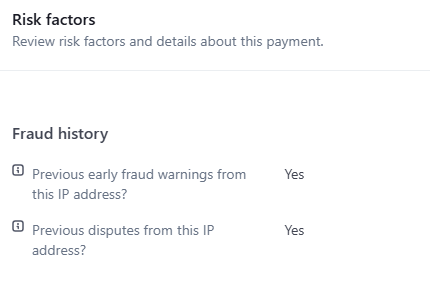
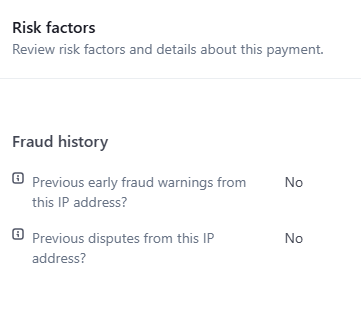
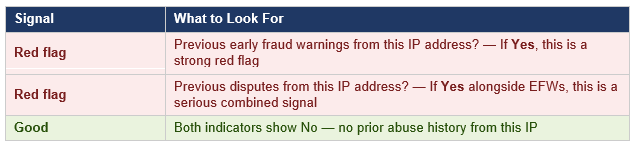
Tip: Some may show "Yes" on both early fraud warnings and disputes especially on iCloud Private Relay Payment networks. This is because Apple routes traffic through a small pool of egress IPs shared across thousands of users. If any user on that IP committed fraud, the IP carries a reputation hit.
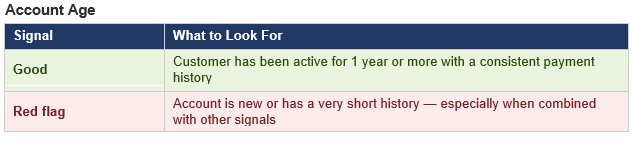
Customer Details — Email Authorization Rate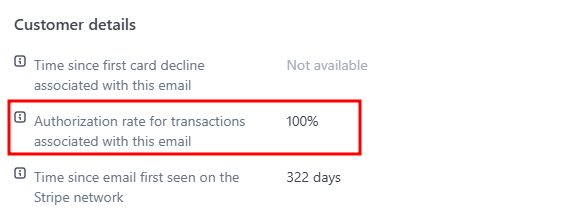

Checkout Details — IP Address & ISP
Check the IP address and Internet Service Provider listed in the checkout details.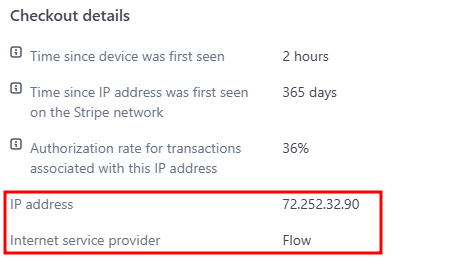
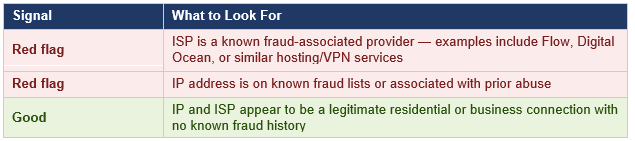
Checkout Behavior — Data Entry Pattern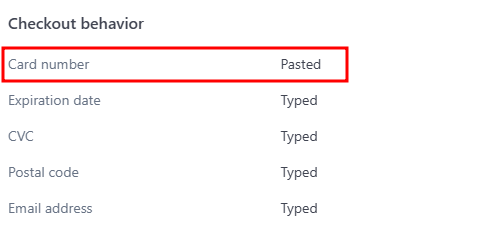

Associated Accounts & Card ID
In Stripe, look for other accounts linked to the same customer profile or card fingerprint.
*this can be found if you scroll down further on their stripe profile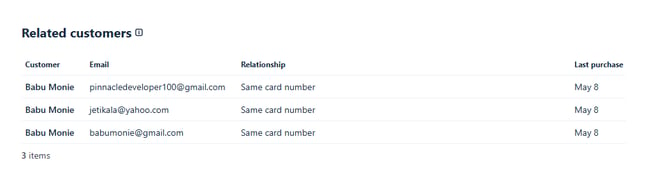
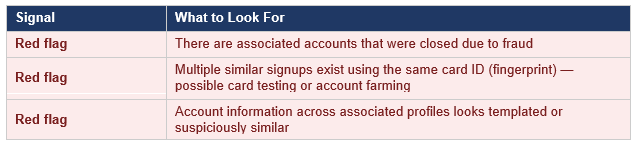
Tip: No single signal equals fraud. Look for a cluster of red flags — a new account with copy-pasted checkout, a known-fraud ISP, EFW history, and a linked closed account is a strong case. One weak signal alone may not be sufficient.

Pull up the account's CDRs in Netsapiens using the domain from the Slack alert. Review the full call history to identify the patterns below.
Inbound vs Outbound Balance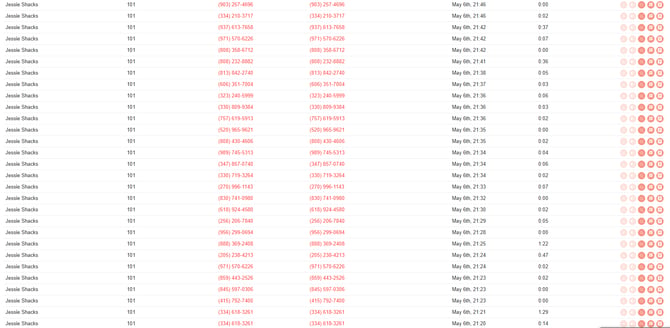

Destination Number Diversity
Read Call Patterns by Plan Type
The "repeat destinations = good, all-unique = red flag" rule works well for Residential accounts, but it doesn't translate cleanly to Business. Always check the Plan Type (Residential vs. Business) before judging the call log.
Call Volume & Speed — Robocall / Auto-Dialer Pattern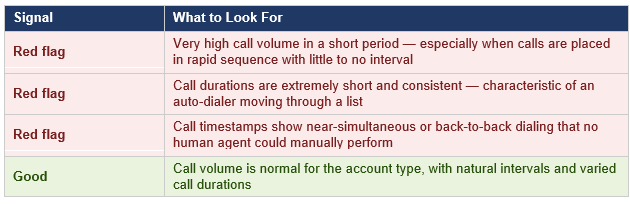
Tip: The Slack alert already tells you the fraud type (e.g. "Robocall Burst"). Use that as your lens when reviewing CDRs — you are confirming what the system detected, not starting from scratch.

Complete all three actions below once fraud has been confirmed.
|
Tool |
Action Required |
|
HubSpot |
Run the "Close Fraudulent Account" workflow Go to the customer's account in HubSpot > Account Workflows > find and run "Close Fraudulent Account". This triggers the automated closure process. |
|
HubSpot |
Log a note under Activities Add a note in the account's Activities tab documenting that the account was closed for fraud, what signals were found, and the date/time of closure. |
|
Stripe |
Add a note on the Stripe customer record Open the customer in Stripe and add a note stating the account was closed due to confirmed fraud. Best to include a brief summary of findings (e.g. EFW history, robocall CDR pattern, Digital Ocean ISP and etc.). |
Tip: Document everything before closing. Your notes in both HubSpot and Stripe create the paper trail needed for any future disputes, chargebacks, or Stripe account reviews. Be specific — "Closed for fraud: outbound-only CDRs, robocall burst pattern, prior EFW on IP, Digital Ocean ISP" is far more useful than just "fraud account."
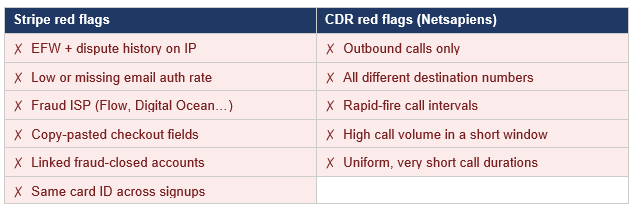
Quick Reference — Fraud Signal Checklist
Use this checklist as a rapid review guide once you are familiar with the full process above.